
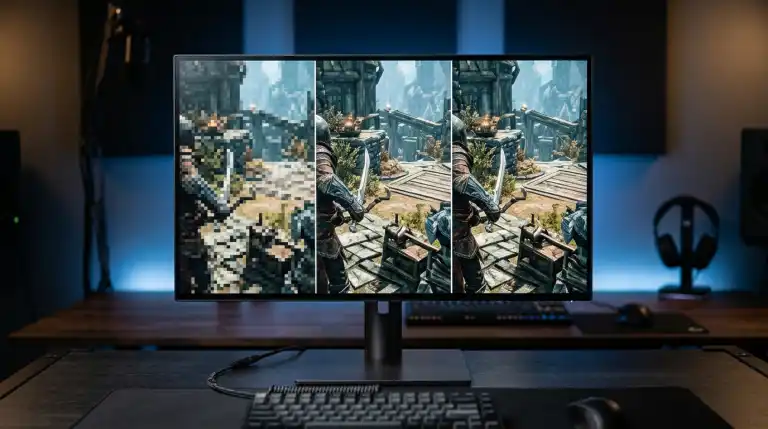
Compare 1080p vs 1440p vs 4K on a 27-inch monitor. Analyze PPI pixel density, Windows DPI scaling, GPU performance requirements, and visual clarity.
The 27-inch display form factor has emerged as the undisputed sweet spot for desktop computing. It provides deep visual immersion in games. It also offers expansive window real estate for productivity. Yet it fits comfortably on standard office desks. It avoids demanding excessive head or neck movement. However, when shopping for a 27-inch monitor, buyers face a critical technical fork in the road: should you choose 1080p Full HD, 1440p Quad HD, or 4K Ultra HD?
Calculate Your Screen Pixel Density and Dot Pitch:
Find your exact monitor PPI, dot pitch, and visual acuity distance right now using our free Monitor PPI and Viewing Distance Calculator.
Resolution cannot be evaluated in a vacuum. A 1080p resolution looks sharp on small smartphones. It looks acceptable on 24-inch monitors, but noticeably pixelated on 27-inch screens. Pixel density dictates true visual sharpness. It measures the physical pixels packed into each linear inch of screen space. In this comprehensive technical guide, we evaluate 1080p, 1440p, and 4K resolutions specifically on a 27-inch canvas across pixel density, Windows scaling, gaming performance, and GPU hardware requirements.
The Mathematics of Pixel Density on a 27-Inch Screen
A 27-inch widescreen monitor has fixed physical dimensions. It measures roughly 23.5 inches wide by 13.2 inches high. The total screen surface area is fixed. Altering resolution changes individual pixel size. Engineers refer to this spacing as dot pitch.
Using the Pythagorean pixel density formula, we can calculate the exact hardware specifications for each resolution on a 27-inch panel:
Pixel Density Calculation: PPI = Sqrt(Horizontal^2 + Vertical^2) / Diagonal
- 1080p (1920 x 1080) on 27" :  81.59 PPI | Dot Pitch: 0.3113 mm | Total Pixels: 2.07 Million
- 1440p (2560 x 1440) on 27" : 108.79 PPI | Dot Pitch: 0.2335 mm | Total Pixels: 3.69 Million
- 4K UHD (3840 x 2160) on 27" : 163.18 PPI | Dot Pitch: 0.1556 mm | Total Pixels: 8.29 Million
The jump from 1080p to 1440p increases total pixel count by roughly 78%, reducing dot pitch from 0.31mm down to 0.23mm. Moving to 4K adds another 125% more pixels. It produces an ultra-dense grid of over 8.2 million picture elements. This massive variation in pixel density completely alters how text renders and how games perform.
1080p on 27 Inches: The Stretched Budget Option.
Full HD (1920×1080) was the dominant desktop standard for over a decade. Stretching two million pixels across 27 inches reveals flaws. The physical pixel structure becomes obvious to the viewer.
At 81 PPI, the pixel grid is plainly visible. You can spot pixel borders at normal viewing distances of 24 inches. This manifests in three noticeable visual flaws:
- Text Fringing and Aliasing: Font characters appear fuzzy with visible stair-stepped jagged edges. Reading small text causes eye fatigue. Letter curves lack fine resolution in spreadsheets and code editors.
- In-Game Aliasing and Shimmering: Fine 3D geometry shimmers during camera rotation. Thin power lines and foliage exhibit heavy visual noise. Smoothing jagged edges requires heavy anti-aliasing. Unfortunately, temporal filters introduce noticeable motion blur.
- Restricted Desktop Work Area: Windows renders at native 100% scale on 1080p. Desktop icons appear oversized, restricting your side-by-side workspace.
The sole advantage of a 27-inch 1080p monitor is minimal GPU processing cost. Budget graphics cards can easily drive high refresh rates of 165Hz to 240Hz in competitive titles. However, for general productivity and immersive gaming, 81 PPI falls below modern desktop standards.
1440p on 27 Inches: The Universal Sweet Spot
Quad HD (2560×1440), often referred to as 2K, is widely regarded by hardware reviewers, esports athletes, and PC enthusiasts as the ideal resolution for a 27-inch display.
At 108.79 PPI, a 27-inch 1440p monitor hits the ergonomic sweet spot for desktop computing. The pixel grid vanishes completely at normal sitting distances of 25 to 30 inches. Text renders with crisp, defined contours without visible grain. In games, environmental textures appear rich. Distant player silhouettes remain sharp without aggressive anti-aliasing.
More importantly, 108.79 PPI allows Windows 11 and macOS to operate at native 100% display scaling. Running at 100% scaling provides 1:1 hardware mapping. Applications and fonts render with pixel-perfect precision. You avoid blurry UI elements and misaligned dialogue boxes. Native scaling avoids all display scaling artifacts. You gain 77% more desktop canvas than 1080p. This lets you snap two full browser windows side by side comfortably.
4K on 27 Inches: High-DPI Clarity vs Scaling Overhead
4K Ultra HD (3840×2160) packs an incredible 8.29 million pixels into the 27-inch frame, achieving an astonishing pixel density of 163.18 PPI.
At 163.18 PPI, visual clarity is staggering. Text appears like high-gloss laser print on physical paper. Digital photos and video timelines display breathtaking detail. You see zero pixel structure even when leaning close. Creative professionals benefit enormously from 4K. Staring at ultra-sharp text for hours provides pristine visual comfort.
However, running 4K on a 27-inch panel introduces two distinct practical trade-offs:
1. Mandatory Windows DPI Scaling
Running 4K at 100% scale shrinks system icons dramatically. Reading tiny text at 163 PPI causes immediate eyestrain. Squinting at microscopic text strains your eyes quickly. Consequently, you must enable Windows DPI scaling, typically setting the slider to 150%.
Windows 11 handles 150% scaling well. However, older legacy utilities can still exhibit blurry text or misaligned buttons. macOS handles high-DPI scaling gracefully through integer pixel doubling, making 27-inch 4K a favorite for Mac creative professionals.
2. Extreme GPU Workload
Rendering games in native 4K requires shading 8.3 million pixels per frame. This demands immense graphical horsepower. This demands massive GPU shader horsepower and at least 16GB of video memory (VRAM). Modern high-bandwidth display connections are essential to drive 4K at high refresh rates; explore bandwidth standards in our guide comparing DisplayPort 2.1 vs HDMI 2.1.
GPU Performance and Hardware Demands Compared.
To understand the performance cost of each resolution, review this rendering pipeline breakdown:
| Metric Parameter. | 1080p (FHD). | 1440p (QHD). | 4K UHD. |
|---|---|---|---|
| Rendered Pixels Per Frame. | 2,073,600 Pixels. | 3,686,400 Pixels. | 8,294,400 Pixels. |
| Relative GPU Workload. | 1.0x (Baseline). | 1.78x Workload. | 4.00x Workload. |
| Recommended Modern GPU. | RTX 4060 / RX 7600. | RTX 4070 / RX 7800 XT. | RTX 4080 Super / RTX 4090. |
| Optimal Windows Scaling. | 100% Native Scale. | 100% Native Scale. | 150% DPI Scaling. |
| Visual Clarity at 28 Inches. | Noticeably coarse. | Crisp and balanced. | Flawless retina sharpness. |
Driving a 1440p monitor requires roughly 78% more graphical compute power than 1080p, a target comfortably met by modern mid-range graphics cards. By contrast, 4K demands four times the raw shading power of 1080p. Ray-traced games at 4K demand flagship graphics cards. Sustaining high frame rates requires AI upscaling like DLSS or FSR.
Viewing Distance: When Does Resolution Stop Mattering?
Human visual acuity is not infinite. Human 20/20 vision resolves details down to one arcminute of visual angle. This defines the optical resolving limit of the eye. Beyond a certain distance, eyes cannot resolve individual pixels. The display appears as a continuous image.
On 1080p 27-inch screens, pixels remain visible up to 42 inches away. You must sit far back to hide pixel boundaries. On a 27-inch 1440p monitor (108.79 PPI), individual pixels blend into a smooth continuous image at 31 inches (79 centimeters). On a 27-inch 4K monitor (163.18 PPI), the display achieves the retina threshold at just 21 inches (53 centimeters).
Sitting 36 inches away narrows the perceptual gap between 1440p and 4K. At long distances, high density offers diminishing returns. To calculate your personal visual acuity limits and ergonomic sitting distances, read our companion guide on Ideal Monitor Viewing Distance for Gaming.
Subpixel Layout and Text Rendering: RGB vs Non-Standard Stripe
When evaluating visual clarity across resolutions, you must consider subpixel architecture. Every pixel on an LCD or OLED panel is composed of three colored subpixels: red, green, and blue. The physical arrangement of these subpixels directly affects font clarity.
Operating systems like Windows use a font rendering engine called ClearType. ClearType exploits the horizontal red-green-blue (RGB) layout of traditional LCD panels to smooth letter edges. By illuminating specific subpixels, the engine triples the horizontal font resolution, making text appear smooth and legible.
At 1080p on a 27-inch screen, subpixel spacing is wide. Even with ClearType enabled, color fringing can appear around fine black text on white backgrounds. At 1440p, standard RGB stripes align well with ClearType, delivering clean typography. At 4K, pixel density is so compact that subpixel antialiasing becomes secondary. The sheer density of 163 PPI makes individual subpixel borders completely invisible to the human eye.
Refresh Rate Limits and Display Cable Bandwidth
Resolution cannot be separated from refresh rate. Gamers often desire high refresh rates (144Hz, 240Hz, or 360Hz) alongside high pixel density. However, transmitting millions of pixels hundreds of times per second pushes display cable bandwidth to its theoretical limits.
Transmitting uncompressed 1080p at 240Hz requires roughly 14 Gigabits per second (Gbps) of video bandwidth. This fits comfortably within standard DisplayPort 1.4 or HDMI 2.0 cables. Moving to 1440p at 240Hz pushes bandwidth requirements to roughly 25 Gbps. This necessitates high-speed DisplayPort 1.4 with Display Stream Compression (DSC) or modern HDMI 2.1 connections.
Driving 4K at 144Hz or 240Hz requires staggering bandwidth exceeding 35 to 70 Gbps. To achieve 4K 240Hz on modern monitors, graphics cards must rely on DisplayPort 2.1 or visually lossless DSC compression algorithms. For competitive esports where latency is paramount, 1440p remains easier to drive at native, uncompressed frame rates.
Which Resolution Should You Buy?
Select your 27-inch monitor resolution based on your primary computing workloads:
Choose 1440p if: You want the absolute best balance of visual sharpness, high refresh rate gaming performance, and native 100% desktop scaling. For 90% of PC gamers and office workers, a 27-inch 1440p monitor is the undisputed gold standard.
Choose 4K if: You are a graphic designer, video colorist, programmer, or creative professional who prioritizes razor-sharp typography and image fidelity above all else. It is also ideal if you own a high-end GPU and play visually rich single-player narrative titles.
Choose 1080p only if: You are on a strict hardware budget and prioritize ultra-high competitive frame rates (240Hz+) on an entry-level graphics card. If you choose 1080p, consider downsizing to a 24-inch monitor to retain crisp 92 PPI density.
FAQs
Is 1440p noticeably better than 1080p on a 27-inch monitor?
Yes. The upgrade from 81 PPI to 108 PPI is immediately noticeable. Text appears smooth rather than pixelated, distant in-game objects retain clarity, and you gain 77% more desktop working space without needing display scaling.
Can you run 4K at 100% scaling on a 27-inch monitor?
Technically yes, but it is not recommended for daily use. At 100% scaling on a 163 PPI panel, Windows icons, menus, and text become tiny, measuring roughly 1.5 millimeters in height. Most users prefer 150% scaling for comfortable reading.
Does playing games at 1080p look bad on a 27-inch 1440p monitor?
Yes. Running 1080p on a 1440p screen produces blur. Because pixel counts do not divide evenly, interpolation softens the image. Non-integer scaling causes pixel interpolation blur. If you own a 1440p monitor, use modern spatial or temporal upscalers like DLSS, FSR, or XeSS instead of dropping internal rendering resolution.
What GPU is needed for 1440p gaming on a 27-inch monitor?
Modern mid-range graphics cards like the Nvidia GeForce RTX 4070 or AMD Radeon RX 7800 XT deliver exceptional performance at 1440p, easily exceeding 100 frames per second in modern AAA titles at ultra settings.
Key Takeaways:
- Pixel density (PPI) dictates visual sharpness, text legibility, and image clarity on computer monitors.
- A 27-inch 1080p monitor produces 81.59 PPI, creating visible pixel grids, jagged text, and in-game edge shimmering.
- A 27-inch 1440p monitor delivers 108.79 PPI, achieving the ideal sweet spot for native 100% Windows scaling and competitive gaming.
- A 27-inch 4K monitor achieves razor-sharp 163.18 PPI, providing laser-printed text clarity but requiring 150% DPI scaling and powerful GPU hardware.
- Human visual acuity reaches its retina resolving limit at 31 inches for 1440p and 21 inches for 4K on a 27-inch diagonal.
- You can determine your screen pixel density, dot pitch, and visual acuity distance in seconds using our free interactive PPI calculator.

Abdulrehman Khalid ✓ Verified Author
Founder & Lead Hardware Analyst at TechWorthies
Abdulrehman Khalid is a technology analyst, hardware researcher, and founder of TechWorthies. With extensive hands-on experience in benchmarking computer hardware, display interfaces, and wireless communications, he specializes in high-speed bus architectures, consumer electronics diagnostics, and emerging AI robotics. His technical guides prioritize empirical lab testing, official standards verification (IEEE, VESA, JEDEC), and actionable troubleshooting for hardware enthusiasts.