
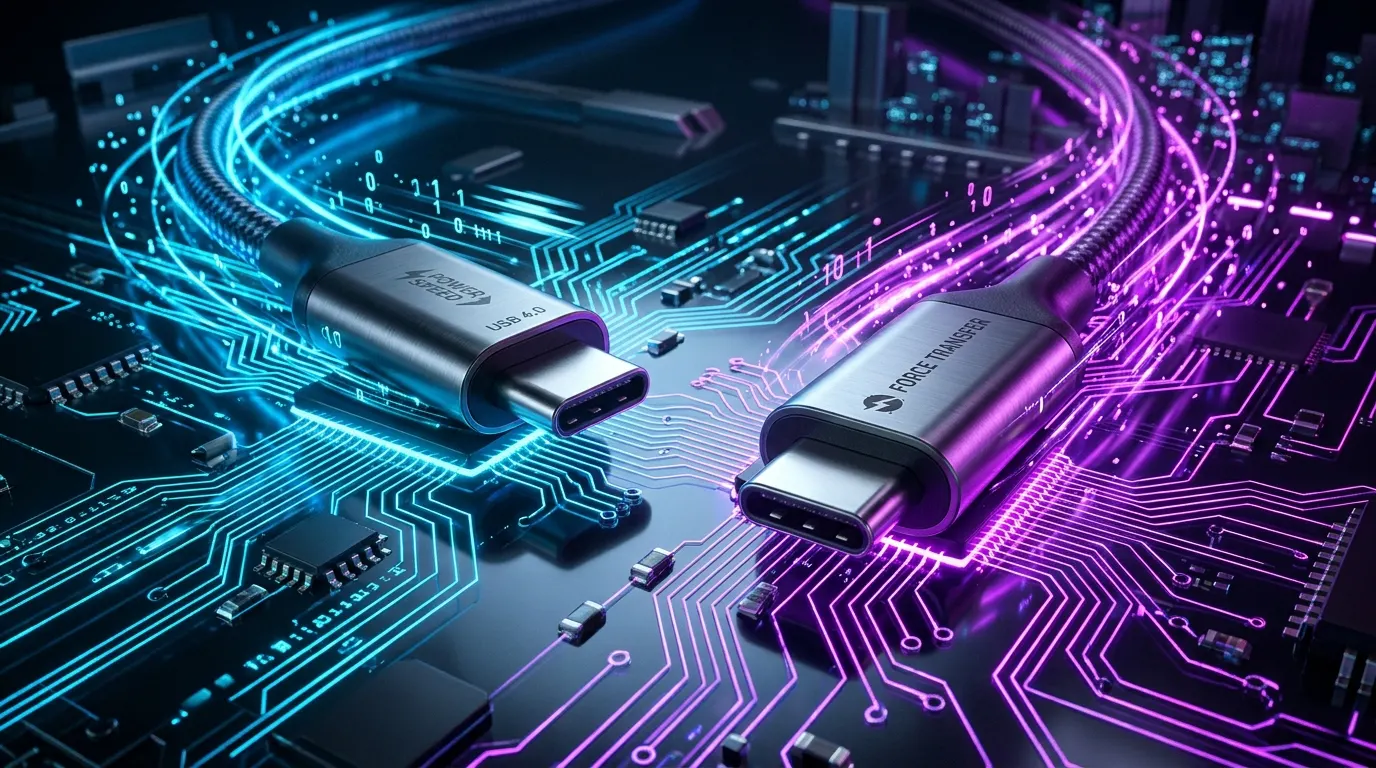
The USB-C connector has made life easier by giving laptops, tablets, and accessories one unified plug. However, the technology running behind that same USB-C port is constantly evolving.
Two of the most powerful connectivity standards available today are Thunderbolt 5 and USB4 Version 2.0. Both offer incredible speeds up to 120 Gbps, support for next-generation multi-monitor displays, and massive power delivery for laptops.
While they share similar technology on paper, their real-world implementation, hardware requirements, and certification rules are quite different. In this guide, we break down the key differences between Thunderbolt 5 and USB4 2.0 so you know exactly what to look for before buying your next laptop, docking station, or cable.
What Is Thunderbolt 5?
Thunderbolt 5 is Intel’s latest high-speed connectivity standard built on the USB Type-C connector. It is engineered for power users, creative professionals, and gamers who need maximum bandwidth for data transfer, multiple high-resolution displays, and external hardware like GPUs.
Unlike open standards, Thunderbolt 5 requires strict certification from Intel. This means any laptop, dock, or device carrying the official Thunderbolt lightning logo must meet strict minimum hardware requirements.
How Does Thunderbolt 5 Work?
Thunderbolt 5 uses an advanced electrical signaling technology called PAM3 (Pulse Amplitude Modulation 3-level). Traditional cables send data using two voltage states (0 and 1). PAM3 uses three states (-1, 0, +1), which allows it to push dramatically more data through standard 1-meter copper USB-C cables without overheating or signal loss.
Here is how it handles data:
- Symmetric Mode: Under normal operation, it provides 80 Gbps transmit and 80 Gbps receive.
- Bandwidth Boost Mode: When you connect multiple high-resolution displays, the system automatically switches one receive lane into a transmit lane. This delivers 120 Gbps downstream for video output while keeping 40 Gbps for upstream data.
- PCIe Gen 4 x4 Routing: It allocates a dedicated 64 Gbps pipeline for external graphics cards (eGPUs) and ultra-fast NVMe storage drives.
Examples of Thunderbolt 5 Devices and Accessories
- High-end creative and gaming laptops powered by Intel Core Ultra processors.
- Professional desktop docks that drive dual 8K or triple 4K monitors through a single cable.
- External GPU (eGPU) enclosures for desktops and portable gaming setups.
- High-speed NVMe RAID external enclosures used by video editors for 8K video scrubbing.
What Is USB4 2.0?
USB4 Version 2.0 is the open industry standard developed by the USB Implementers Forum (USB-IF). It is designed to bring 80 Gbps and 120 Gbps speeds to mainstream computing devices without the proprietary licensing costs associated with Intel certification.
Because it is an open specification, USB4 2.0 serves as the technological foundation for Thunderbolt 5. However, hardware manufacturers have the freedom to decide which features they want to include and which ones they want to leave out to keep device costs lower.
Main Functions of USB4 Version 2.0
- High-Speed Data Tunneling: Multiplexes USB data, PCIe packets, and DisplayPort video streams dynamically across a single connection.
- Optional Asymmetric 120 Gbps: Capable of delivering up to 120 Gbps for display output, provided the laptop manufacturer enables it in their firmware.
- Broad Ecosystem Compatibility: Functions seamlessly across Intel, AMD, ARM (Apple Silicon and Qualcomm Snapdragon), and Linux-based platforms.
Thunderbolt 5 vs USB4 2.0: Key Differences
While both standards can achieve similar top speeds, the fundamental difference lies in mandatory minimums versus optional features.
| Feature | Thunderbolt 5 | USB4 Version 2.0 |
|---|---|---|
| Governing Body | Intel Corporation | USB Implementers Forum (USB-IF) |
| Base Speed (Bi-directional) | 80 Gbps (Mandatory) | 80 Gbps (Mandatory) |
| Bandwidth Boost (Display) | Up to 120 Gbps (Mandatory) | Up to 120 Gbps (Optional profile) |
| PCIe Data Throughput | 64 Gbps (Mandatory) | Up to 64 Gbps (Optional for OEMs) |
| DisplayPort Version | DisplayPort 2.1 (Native) | DisplayPort 2.1 (Tunneling) |
| Minimum Laptop Charging | 140W Mandatory (Up to 240W EPR) | Varies by OEM (Often 15W–60W baseline) |
| Certification Process | Strict Intel Lab Testing | USB-IF Self/Independent Compliance |
| Backwards Compatibility | Thunderbolt 4/3, USB4, USB 3.x/2.0 | USB4 1.0, USB 3.x/2.0 (TB3/4 optional) |
Here is how these differences impact real-world use:
- PCIe Throughput for eGPUs: Thunderbolt 5 guarantees full 64 Gbps PCIe Gen 4 x4 throughput. With USB4 2.0, a laptop maker might cut costs by omitting PCIe tunneling, meaning an eGPU or fast external SSD may not work at all.
- Display Outputs: Thunderbolt 5 laptops guarantee support for multiple high-resolution displays. On a USB4 2.0 laptop, multi-display support depends entirely on how the manufacturer wired the internal GPU to the port.
- Charging Guarantees: Thunderbolt 5 mandates at least 140W charging on host laptops, ensuring power-hungry machines charge quickly through docks. USB4 2.0 leaves charging wattage up to the manufacturer.
Which One Do You Actually Need?
Your decision comes down to the types of devices you connect and how much peace of mind you want when buying accessories.
Choose Thunderbolt 5 If:
- You plan to use an external GPU (eGPU) for gaming, 3D animation, or AI machine learning.
- You run multiple 4K (144Hz+) or 8K displays on a single desktop dock.
- You use high-speed multi-drive NVMe storage arrays for high-bitrate video editing.
- You want guaranteed single-cable docking where video, data, and 140W+ laptop power all work reliably out of the box.
Choose USB4 2.0 If:
- You are buying an AMD-based laptop or handheld gaming PC (like the ROG Ally or Legion Go successors).
- You primarily connect standard accessories like keyboards, mice, external audio interfaces, or single 4K monitors.
- You want high-speed external SSD transfers without paying a premium for Intel-branded hardware.
How Do Thunderbolt 5 and USB4 2.0 Work Together?
Because Thunderbolt 5 is fully compatible with USB4 2.0 specifications, the two technologies work together smoothly across the same USB-C ecosystem.
For example:
- Connecting a Thunderbolt 5 dock to a USB4 laptop: The dock will communicate with the laptop using standard USB4 protocols. Data transfers and basic display outputs will work, though performance may be limited by whatever features the laptop maker enabled.
- Using a USB4 2.0 SSD on a Thunderbolt 5 laptop: The SSD will run at its full 80 Gbps rated speed because the Thunderbolt 5 port fully supports the underlying USB4 standard.
- Cross-Cable Compatibility: A certified Thunderbolt 5 cable will work on any USB4, Thunderbolt 4, or USB 3.x port without damaging hardware.
What to Check Before Buying
Before purchasing a new laptop, dock, or cable, check these important details:
- Look for the Port Logo: Genuine Thunderbolt 5 ports feature a small lightning bolt with the number 5 next to it. USB4 2.0 ports are typically marked with a “USB 80Gbps” or “USB 120Gbps” logo.
- Verify Cable Bandwidth Ratings: Older Thunderbolt 4 or USB4 cables max out at 40 Gbps. To reach full 80 Gbps or 120 Gbps speeds, ensure the cable is explicitly labeled for 80Gbps or 120Gbps.
- Check the Laptop’s Spec Sheet: If buying a laptop with USB4, verify whether the port supports PCIe tunneling and what maximum charging wattage it accepts.
Common Thunderbolt 5 and USB4 2.0 Problems
Why Is My Drive Not Reaching 80 Gbps?
The most common reason is cable limitation. If you connect an 80 Gbps external SSD using an older 40 Gbps Thunderbolt 4 cable or a standard charging cable, the connection falls back to 40 Gbps or even USB 2.0 (480 Mbps) speeds.
Why Is My External Monitor Limited to 60Hz?
High-refresh rates require DisplayPort 2.1 tunneling and host GPU support. If your laptop’s integrated graphics or dock does not support DisplayPort 2.1 UHBR modes, the monitor will negotiate a lower refresh rate.
Why Does My eGPU Not Connect on a USB4 Port?
External GPUs require PCIe tunneling. While Thunderbolt 5 mandates PCIe support, some budget USB4 laptops omit PCIe routing to reduce motherboard costs and power consumption.
FAQs
Can I plug a Thunderbolt 5 cable into a USB4 port?
Yes. Thunderbolt 5 cables use the standard USB Type-C connector and are fully backwards compatible with USB4, Thunderbolt 4, Thunderbolt 3, and older USB devices.
Do Thunderbolt 5 and USB4 2.0 require special cables?
To reach 80 Gbps or 120 Gbps speeds, you need cables specifically certified for 80Gbps or 120Gbps. Older Thunderbolt 4 cables will work, but will cap transfer speeds at 40 Gbps.
Will AMD laptops support Thunderbolt 5?
AMD systems usually adopt USB4 Version 2.0. However, laptop makers can add discrete Intel Thunderbolt 5 controller chips (like Barlow Ridge) to AMD motherboards if they choose to pay for Intel certification.
What is the difference between Thunderbolt 5 and Thunderbolt 4?
Thunderbolt 5 doubles base speeds from 40 Gbps to 80 Gbps, adds a 120 Gbps Bandwidth Boost mode for displays, doubles PCIe data throughput from 32 Gbps to 64 Gbps for eGPUs, and upgrades DisplayPort support to version 2.1.
Key Takings:
- The difference between Thunderbolt 5 and USB4 2.0 comes down to mandatory guarantees versus optional features. Both share an 80 Gbps to 120 Gbps ceiling, but Thunderbolt 5 guarantees full performance on every device.
- If you use external GPUs, multiple high-refresh 4K or 8K monitors, or high-speed NVMe storage, Thunderbolt 5 delivers the dedicated 64 Gbps PCIe bandwidth you need.
- If you want fast everyday connectivity on AMD laptops or handheld gaming PCs without paying licensing premiums, USB4 2.0 offers great performance, but check your laptop specs before buying.
- Always ensure you use certified 80Gbps or 120Gbps rated USB-C cables to avoid falling back to legacy 40 Gbps limits.
Additional Resources:
- Intel’s Official Thunderbolt Technology Architecture Brief: Official Intel whitepaper explaining PAM3 signaling, Bandwidth Boost, and Barlow Ridge controller architecture.

Abdulrehman Khalid ✓ Verified Author
Founder & Lead Hardware Analyst at TechWorthies
Abdulrehman Khalid is a technology analyst, hardware researcher, and founder of TechWorthies. With extensive hands-on experience in benchmarking computer hardware, display interfaces, and wireless communications, he specializes in high-speed bus architectures, consumer electronics diagnostics, and emerging AI robotics. His technical guides prioritize empirical lab testing, official standards verification (IEEE, VESA, JEDEC), and actionable troubleshooting for hardware enthusiasts.